Get your shipping data — 5 minutes per carrier

To show you exactly what you’d save, we review your real carrier billing detail. Here’s how to download it as a CSV from UPS, FedEx or Worldwide Express — screen by screen — and send it to us. No obligation.

UPS FedEx Worldwide Express / SpeedShip Printable PDF guide

Why we need this file

Your billing export lists every shipment — service, weight, zone, surcharges and what you were actually charged. That lets us price each one against our rates line by line. Estimates guess; your invoices don’t.

Your login stays yours

You download the file yourself from your own carrier account. We never ask for, see or store your password, and the export contains no passwords or full payment-card numbers.

What to send

  • The CSV file(s) from each carrier you use
  • Your most recent 3 months — 12 is even better
  • Email them to support@insertready.com
UPS

Export your UPS billing data

billing.ups.com · ≈ 5 minutes
  1. 1

    Sign in to the UPS Billing Center

    Go to billing.ups.com and sign in with your ups.com login. In the left menu, click Reporting & Search. (First time? You may need to enroll first.)
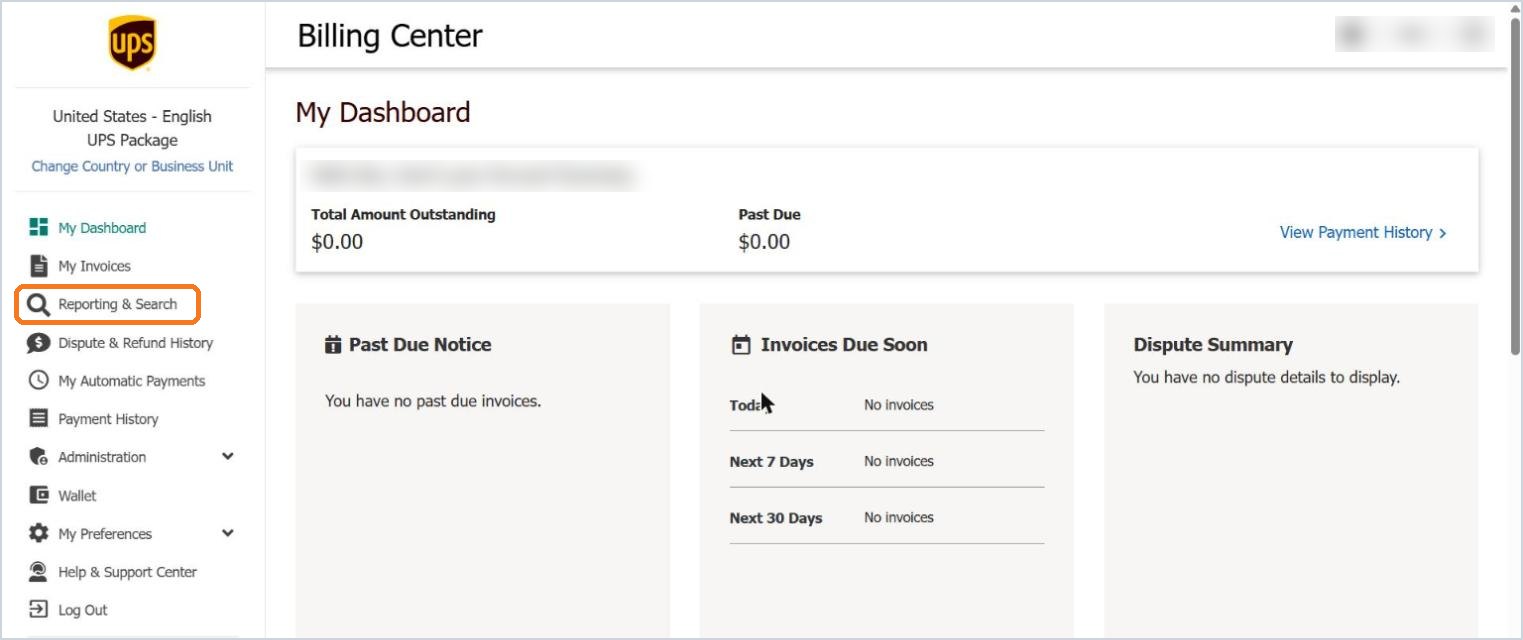
    UPS screen: Sign in to the UPS Billing Center
  2. 2

    Choose Invoice Detail

    Under Select your category, pick Invoice Detail. This is the shipment-level report: one line per package, with service, weight, zone and charges.
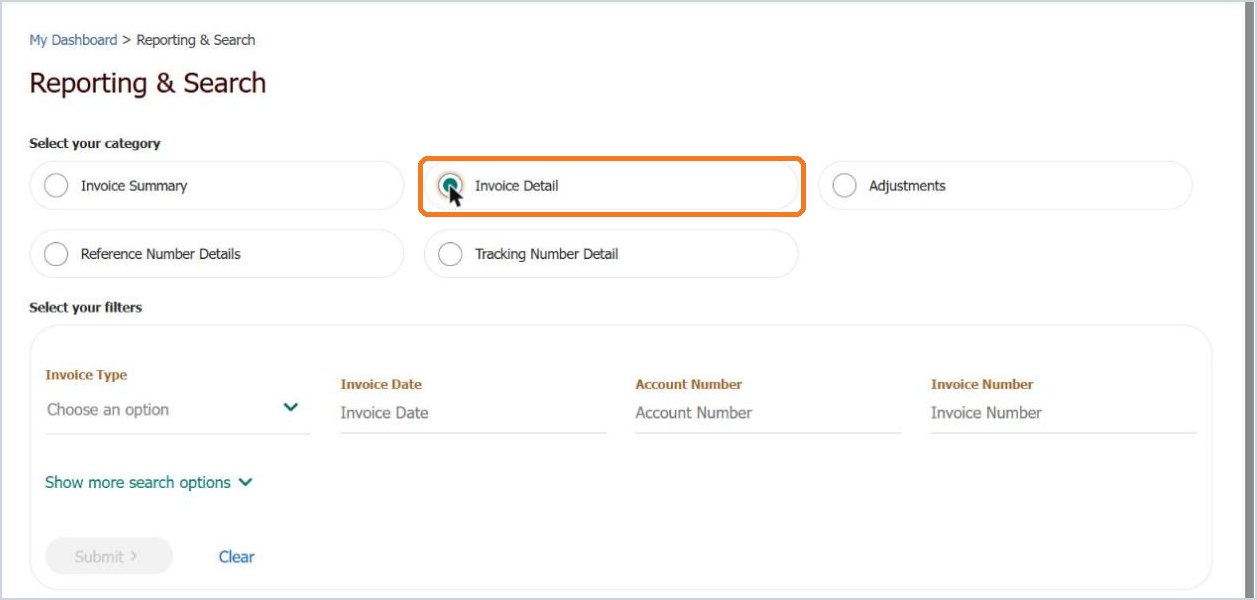
    UPS screen: Choose Invoice Detail
  3. 3

    Set the date range

    Click the Invoice Date box, choose Last 6 Months (or Custom for up to 12 months), then click Apply.
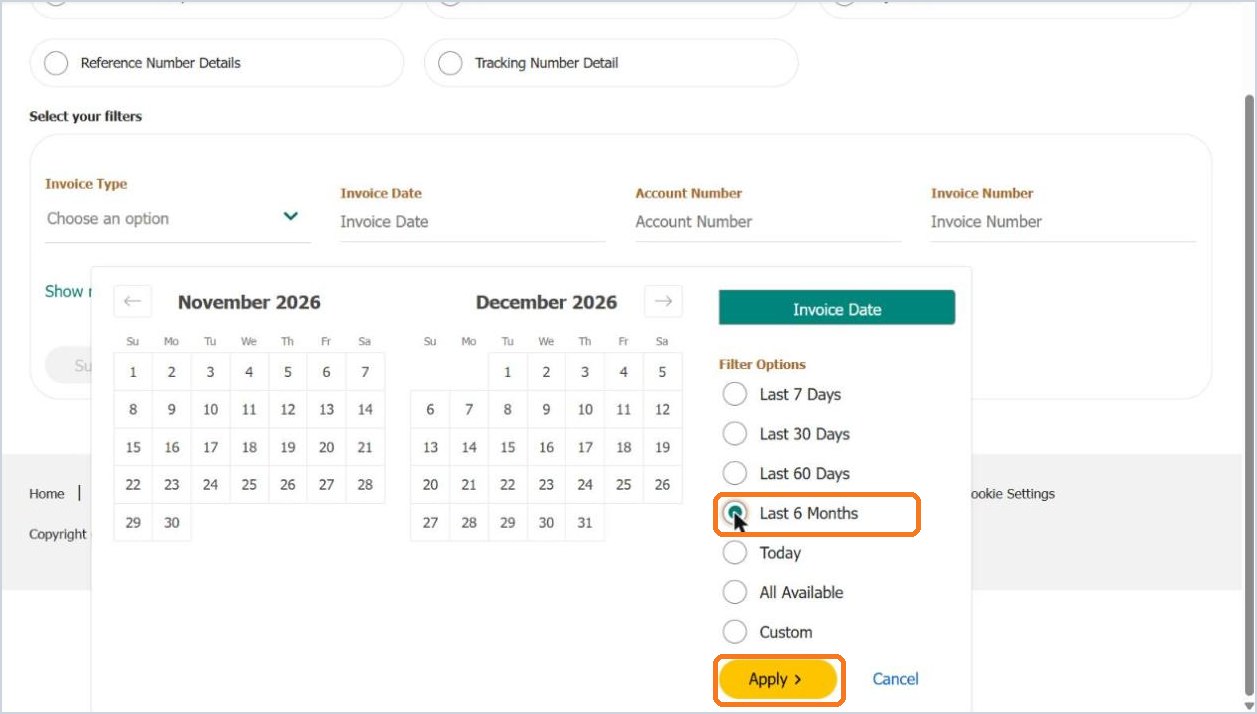
    UPS screen: Set the date range
  4. 4

    Run the search

    Click Submit. Your shipments load in the table below.
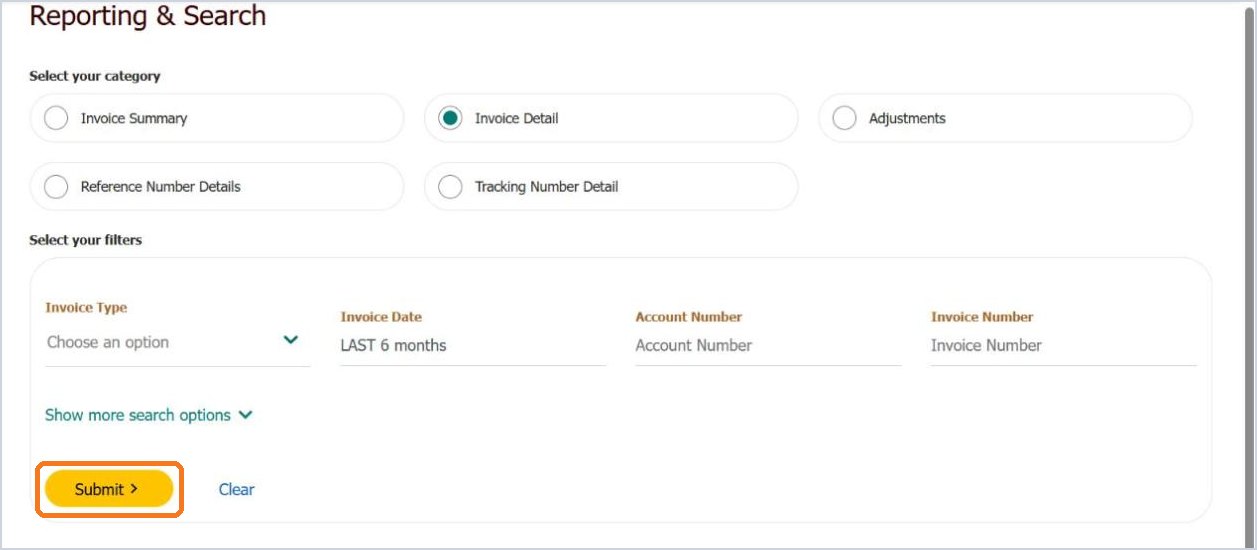
    UPS screen: Run the search
  5. 5

    Export as CSV

    Click the Export icon (the box with an up-arrow, top-right of the table). Choose CSV, then Download.
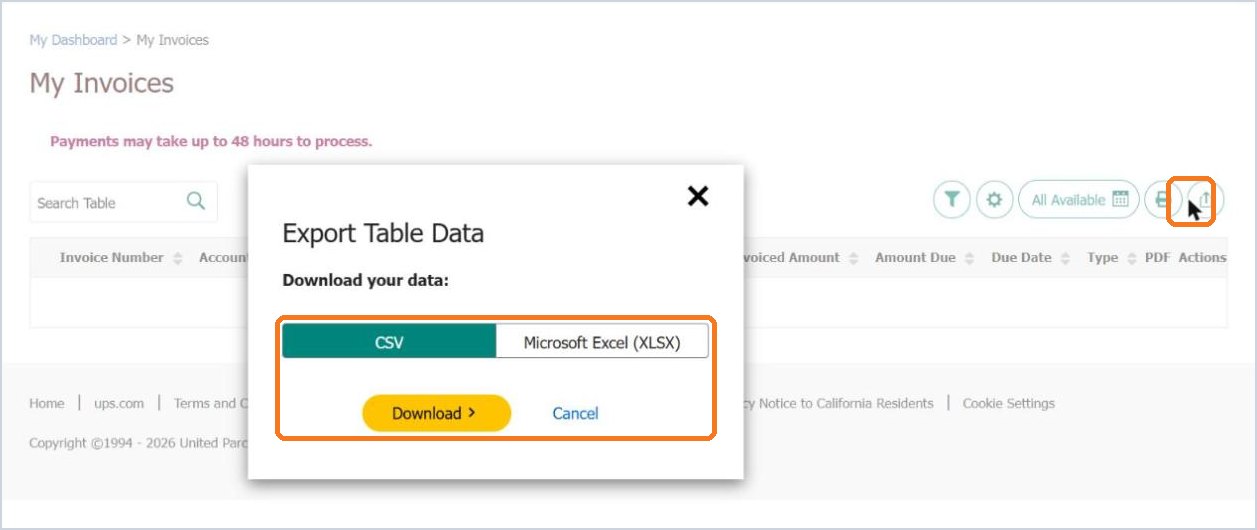
    UPS screen: Export as CSV
  6. 6

    Email the file to us

    Send the CSV to support@insertready.com. That's it!

Good to know: No invoices showing? Check that you're in the right Business Unit (top-left, under the UPS logo) — package and freight are billed separately.
FedEx

Export your FedEx billing data

fedex.com · Reporting · ≈ 5 minutes + FedEx build time
  1. 1

    Sign in and open Reporting

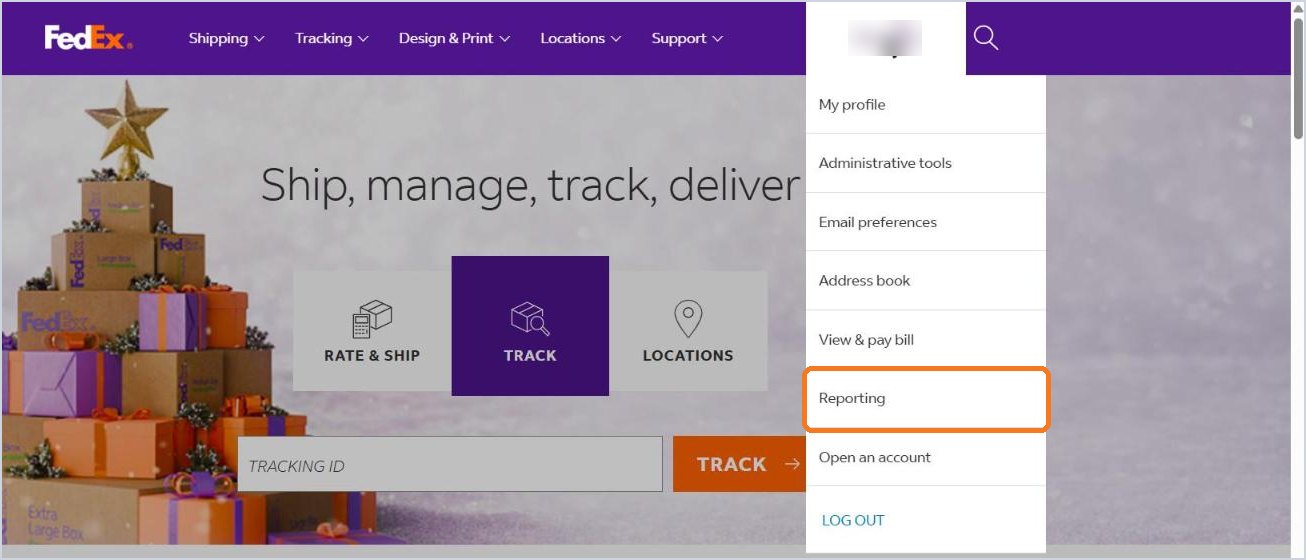
    Go to fedex.com and log in. Click your name at the top-right, then choose Reporting.

    FedEx screen: Sign in and open Reporting
  2. 2

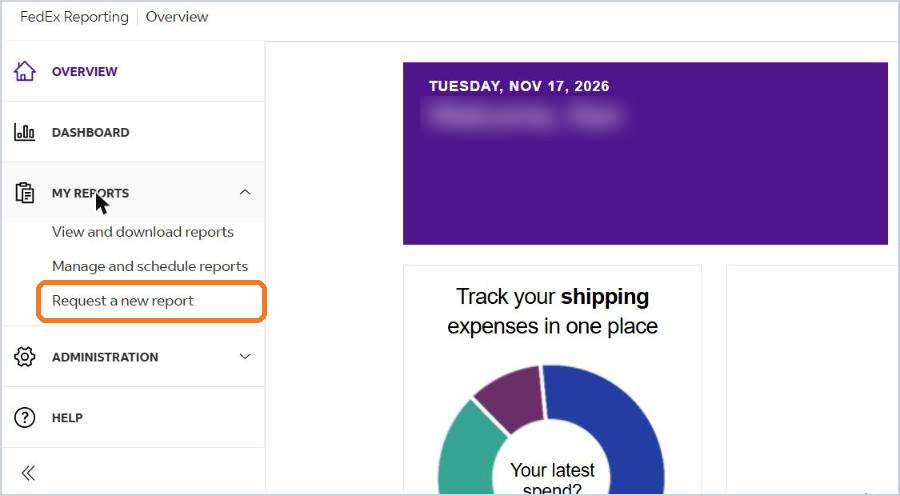
    Request a new report

    Expand the left sidebar, open My Reports, and click Request a new report.

    FedEx screen: Request a new report
  3. 3

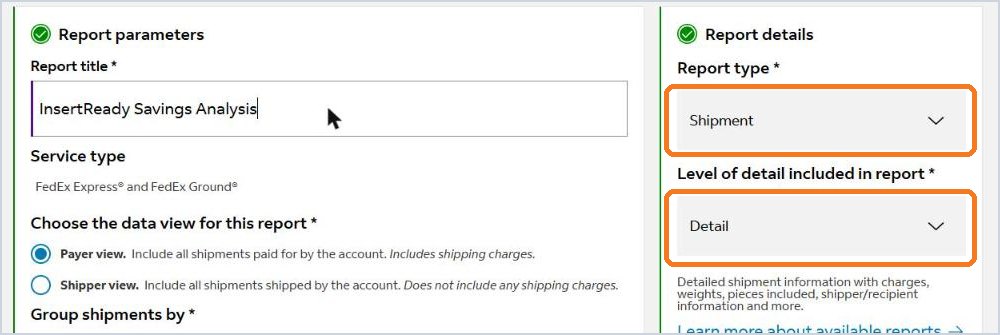
    Pick the Shipment Detail report

    Give it any title. Under Report type choose Shipment, and leave Level of detail on Detail. Keep Payer view selected.

    FedEx screen: Pick the Shipment Detail report
  4. 4

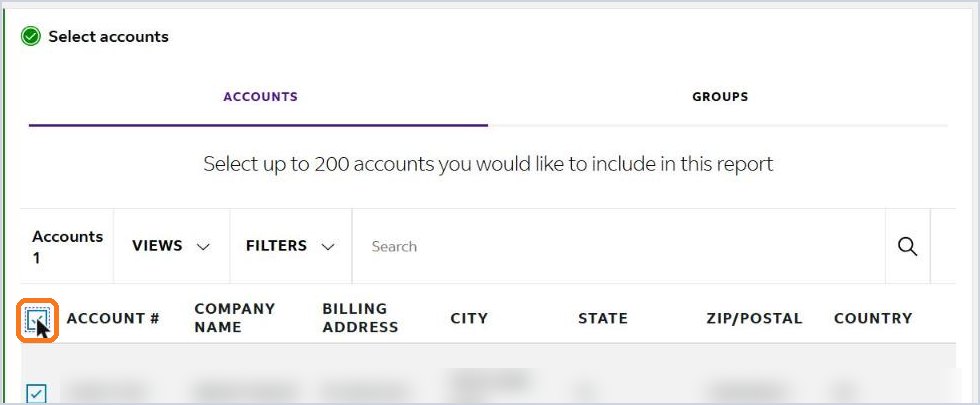
    Select all your accounts

    In Select accounts, tick the box in the header row so every account number is included.

    FedEx screen: Select all your accounts
  5. 5

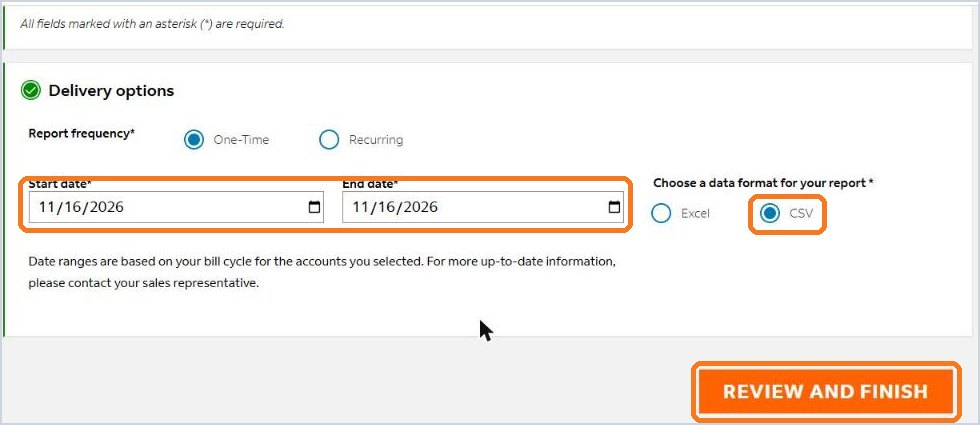
    Set dates and choose CSV

    Set the Start date to 3 months ago (12 is ideal) and the End date to today. Choose CSV, then click Review and Finish.

    FedEx screen: Set dates and choose CSV
  6. 6

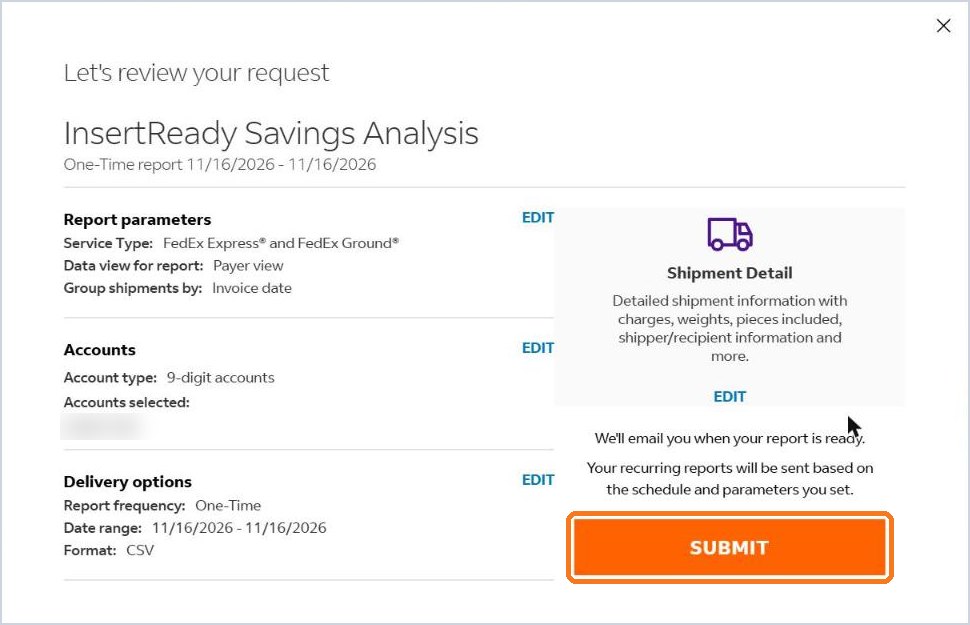
    Submit the request

    Check the summary and click Submit. FedEx emails you when the report is ready.

    FedEx screen: Submit the request
  7. 7

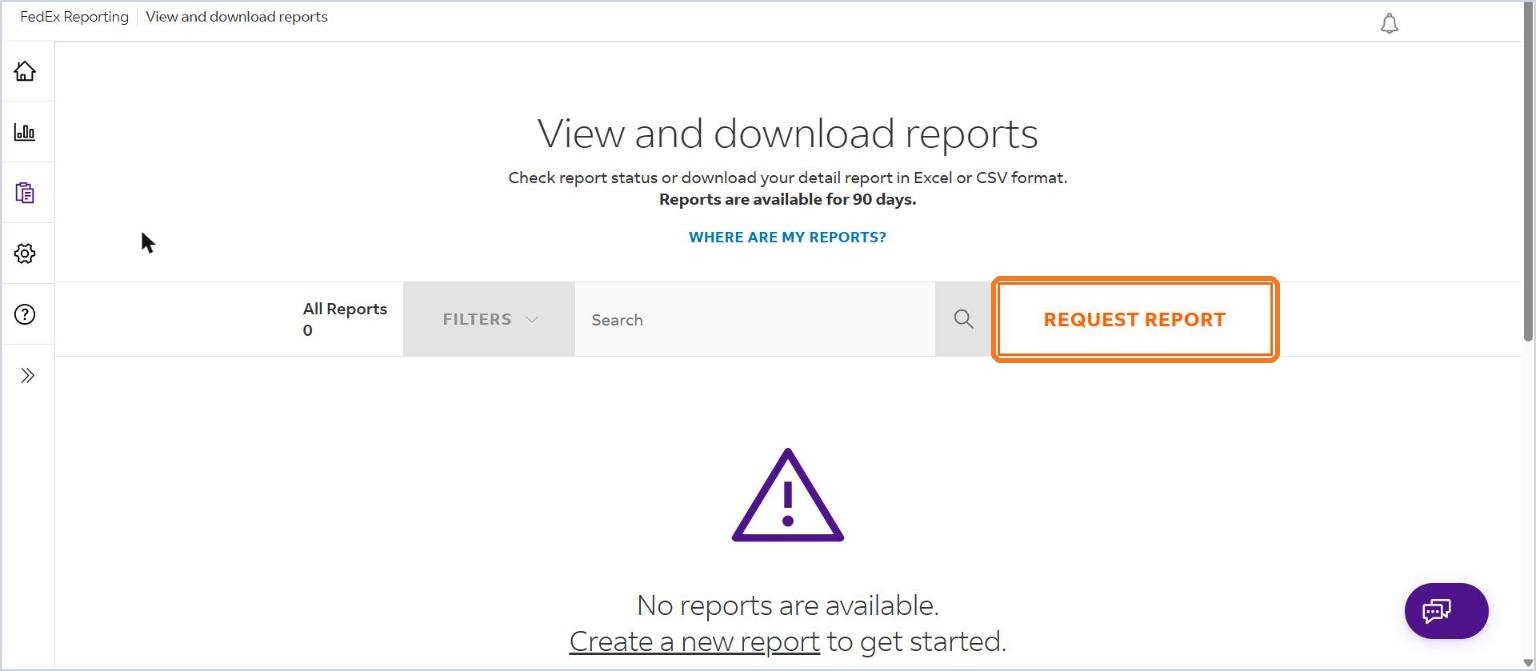
    Download and email it to us

    Come back to My Reports → View and download reports, download the finished CSV, and send it to support@insertready.com.

    FedEx screen: Download and email it to us
Good to know: FedEx builds reports in the background — usually ready within 24–48 hours, and kept for 90 days. Watch for their email.
WWEX

Export your Worldwide Express data

speedship.com · ≈ 2 minutes

Ship through Worldwide Express, Unishippers or another reseller? Your shipments are billed by them, not by UPS or FedEx directly — so the data lives in SpeedShip, not in the carrier's billing center.

  1. 1

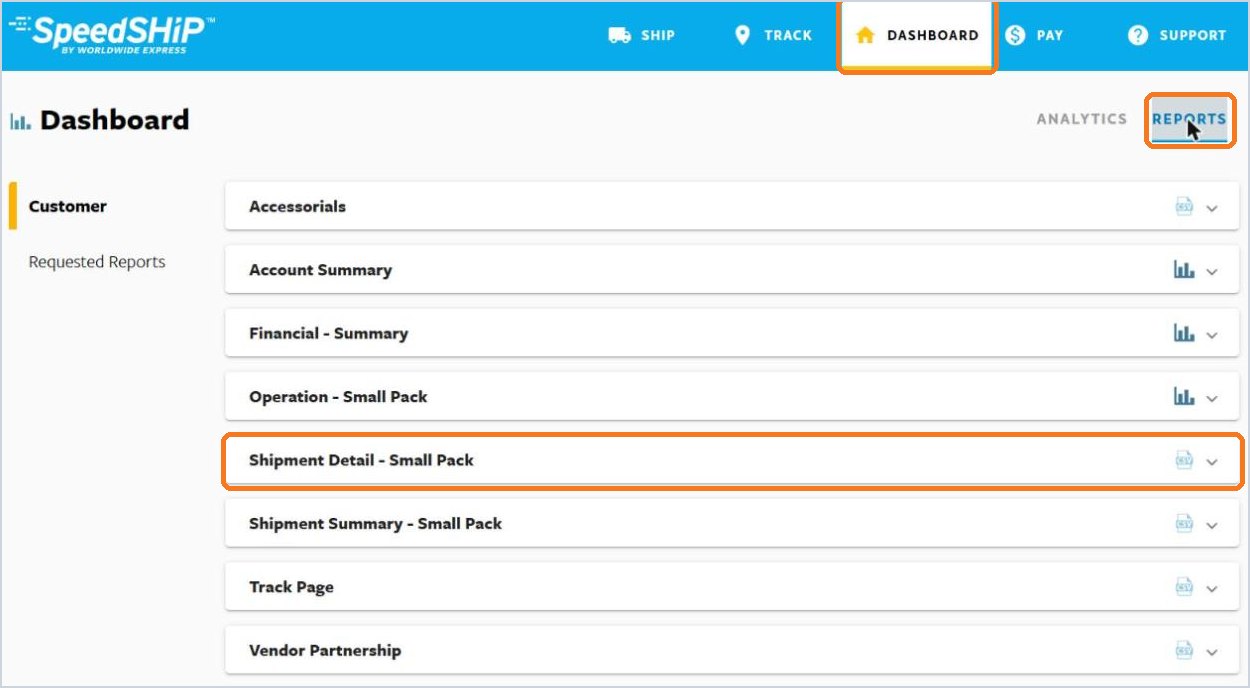
    Open Dashboard → Reports

    Sign in at speedship.com. Click Dashboard in the top menu, then the Reports tab. Open Shipment Detail – Small Pack.

    WWEX screen: Open Dashboard → Reports
  2. 2

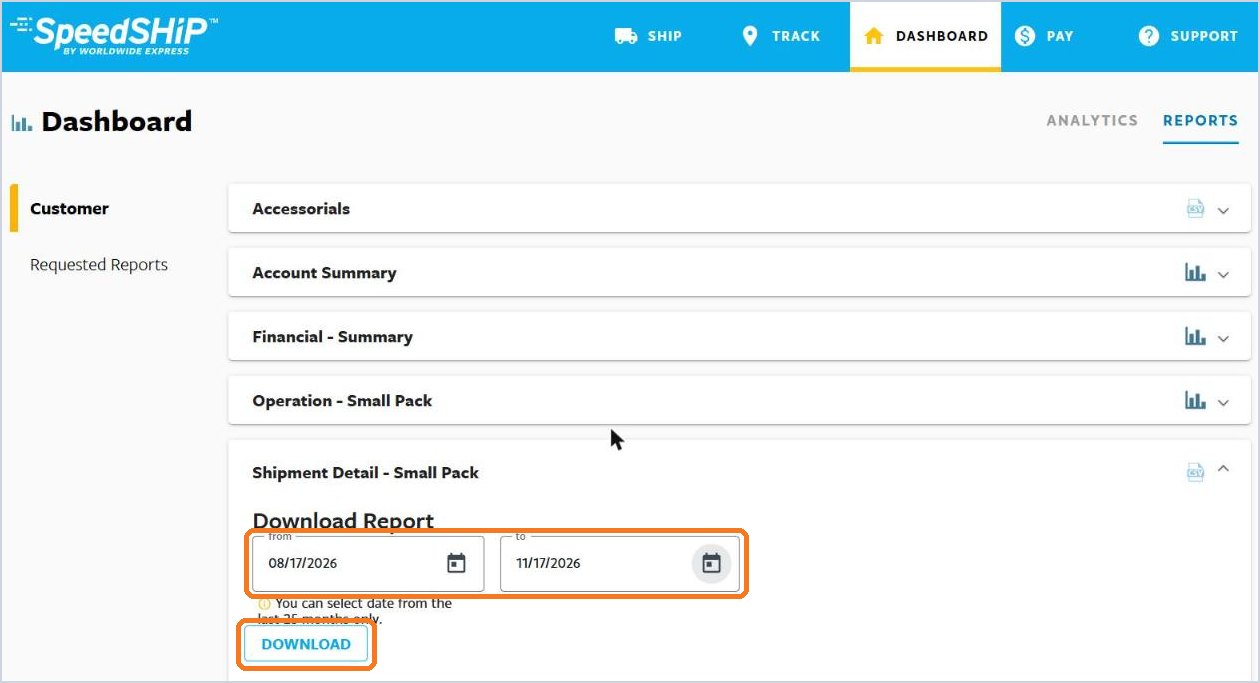
    Set your dates and download

    Pick a from date 3–12 months back and a to date of today, then click Download. The file is a CSV.

    WWEX screen: Set your dates and download
  3. 3

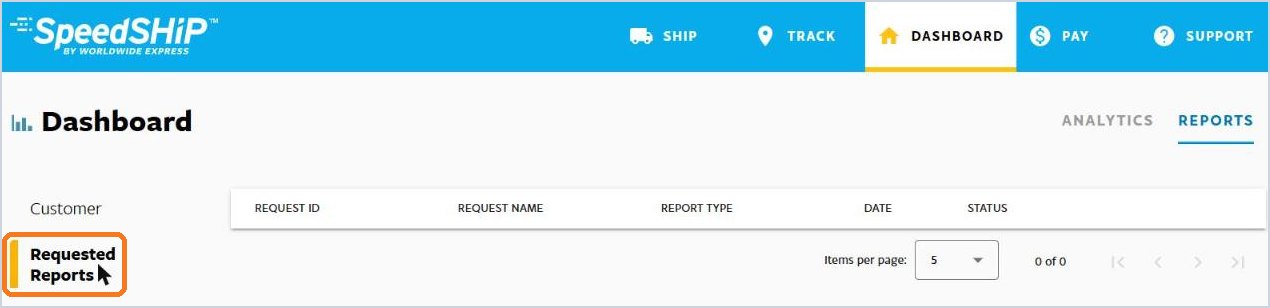
    Big date range? Check Requested Reports

    Larger reports may be queued instead of downloading right away — pick them up under Requested Reports. Then email the CSV to support@insertready.com.

    WWEX screen: Big date range? Check Requested Reports
Even easier: ask your rep: Message your Worldwide Express rep (or SpeedShip Live Chat) and ask for “a shipment-level detail export in CSV covering the last 12 months.” Forward it to support@insertready.com.

Send us your file(s)

Email the CSVs to support@insertready.com. We’ll send back a plain-English savings report, shipment by shipment — usually within a couple of business days.

Working with an InsertReady dealer? Send it to them instead — they’ll get you the same report.